
Appearance
FAQ
WADMP Ports/Addresses - What should I put on firewall whitelist?
This section lists the DNS names and ports that customers need to whitelist in their firewall.
Caution
Whitelist by DNS name, not by IP address. The underlying IP addresses can change without notice as the cloud infrastructure (AWS) is updated; only the DNS names remain stable.
| DNS | Port | Accessed from router? | Accessed from users? |
|---|---|---|---|
| management.wadmp3.com | 8883 | Yes | No |
| bootstrap.wadmp3.com | 8884 | Yes | No |
| content.wadmp3.com | 443 | Yes | No |
| gateway.wadmp3.com | 443 | No | Yes |
| api.wadmp3.com | 443 | No | Yes (optional) |
| *.vpn.wadmp3.com | 443 | No | Yes (optional) |
| *.hubs.wadmp3.com | variable | Yes (optional) | Yes (optional) |
Cellular Data Usage - How much data will some operations take?
The following examples apply to steady-state operation, i.e., the device has already connected to the WebAccess/DMP Management Server. If your device's cellular connection is unstable (for example, due to poor signal strength), you may experience occasional re-connects. Each re-connection involves several data transfers:
- TLS handshake = approximately 5 kB, due to the exchange of X.509 certificates
- Configuration re-synchronization = approximately 150 kB, depending on the number of Router Apps installed and the content of the configuration data
When a user actively manages a device via WebAccess/DMP, the overall data usage depends on the exact actions performed. For example:
- Firmware upgrade = approximately 14 MB, depending on the device type and firmware version
- Router App installation or upgrade = anywhere from 30 kB for a small app such as Pinger to 6 MB for a large app such as Python
- Re-configuration = varies, depending on the section being re-configured and the content of the configuration data
The configuration manual for your device has a section on the "Check Connection" feature, part of the Mobile WAN configuration. It states:
Enabling the Check Connection function for mobile networks is necessary for the uninterrupted and continuous operation of the router.
This advice applies to any device using WebAccess/DMP, but the "Enable Traffic Monitoring" item should also be enabled. The device will monitor all traffic on the cellular interface and only send ping requests if the selected Ping Interval is less than the WebAccess/DMP keepalive interval (60 seconds). If you do not enable "Enable Traffic Monitoring", the device will send periodic ping requests to check the cellular connection, which will add to your cellular data usage.
The most significant factor contributing to gradual data usage growth is the transport keepalive interval used in the DMP Client Router App. This is hard-coded to 60 seconds, which may seem aggressive, but some cellular operators have very short network timeouts — as low as 2 minutes.
This page uses base-10 (decimal/SI) prefixes: 1000 B = 1 kB, 1000 kB = 1 MB, etc. However, WebAccess/DMP always uses base-2 (1024) data units, in line with our routers' convention. Both B, KB, MB... and B, KiB, MiB... notations may appear, but they always use the base-2 (1024) count.
How to export all company data?
You can export your company’s data from wadmp3.com in three different ways. Each export provides different information, and together they give you a complete backup of your device data, desired configurations, and time-series reports.
1. Export Device Data from Dashboard Tables
- Navigate to the Dashboard in your wadmp3.com account.
- Locate the table that lists your company’s devices.
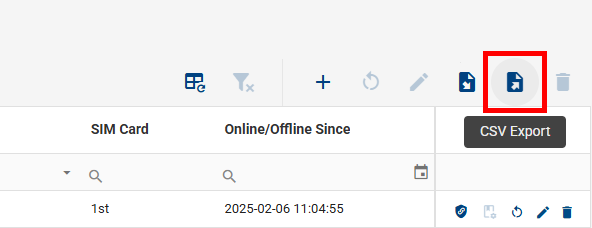
- Click the Export button located near the table.
- Enter a name for your CSV file and click Export.
This will download a CSV file to your computer containing detailed device information. CSV files can be opened in spreadsheet applications like Microsoft Excel or Google Sheets for easier viewing and analysis.
2. Export Desired Configurations via Swagger
- Open the Swagger API page in your browser.
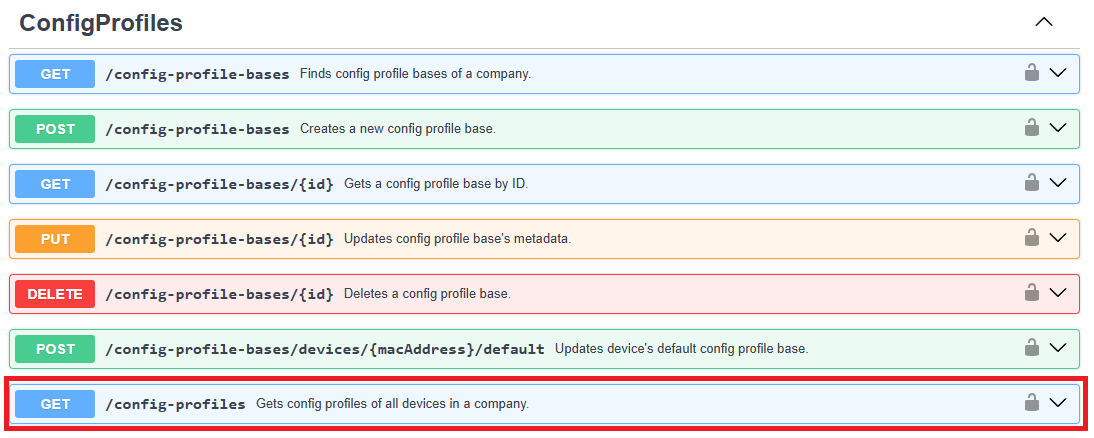
- Scroll down to the ConfigProfiles endpoint.
- Expand the endpoint description and click the Try it out button.
- Execute the request to download all desired configurations for your devices.
This export contains the configuration settings that your company has applied to its devices. It is useful for record-keeping and troubleshooting.
3. Export Time-Series Data via Swagger
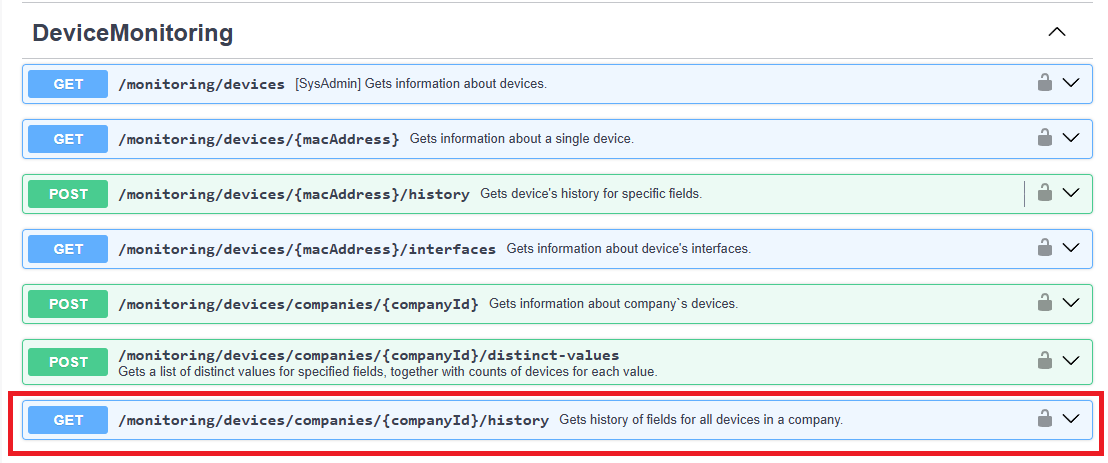
- From the same Swagger API page, scroll down to the DeviceMonitoring endpoint.
- Expand the endpoint description and click the Try it out button.
- Execute the request to export all time-series data reported by your devices.
Time-series data contains historical reports such as performance metrics, usage statistics, and monitoring logs. This is especially helpful for analyzing device behavior over time.
Notes
- Large exports (especially time-series data) may take longer to generate depending on how many devices your company manages.
- Make sure you have the appropriate permissions to access the Swagger API endpoints.
- Always store your exported data securely, especially if it contains sensitive company information.