
Appearance
User Roles
Permissions define what users can view, create, edit, or delete within a company. They are scoped per company, meaning a user can belong to multiple companies and have different permissions or roles in each. Permissions can be assigned individually or through roles.
A user can belong to several companies and hold a different role in each:
General Rules
- Users can always edit their own profile information (name, email, etc.), regardless of their assigned permissions.
- Users cannot modify their own permissions.
- Users may modify the permissions of other users only in companies where they have the Edit Users permission, and they can assign only those permissions that they themselves currently hold.
- Each user can have zero or just one role per company.
Roles
Roles are predefined or custom sets of permissions that simplify user management. They can be configured on the Roles page under the User Management section.
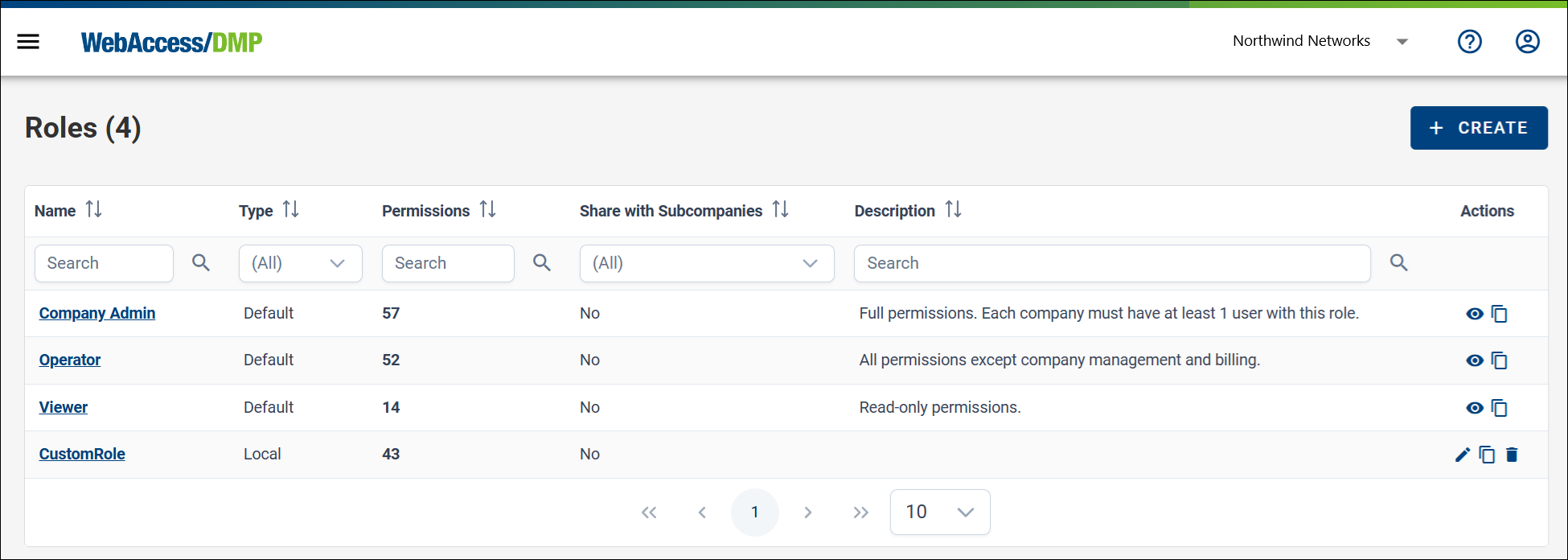
Default Roles
The system provides several default roles. Using these roles ensures that any new permissions added in future releases are automatically included in the appropriate roles.
| Role | Description | Key Capabilities |
|---|---|---|
| Company Admin | Full access to all company features. The system enforces at least one Company Admin per company. | All permissions, including company management, billing, devices, VPN, alerts, and auditing. |
| Operator | Full operational capabilities except company management and billing. | Manage devices, alerts, VPN, fields, views, proxy links, and service accounts. |
| Viewer | Read-only access to company data. | View-only permissions; cannot create, edit, or delete resources. |
Custom Roles
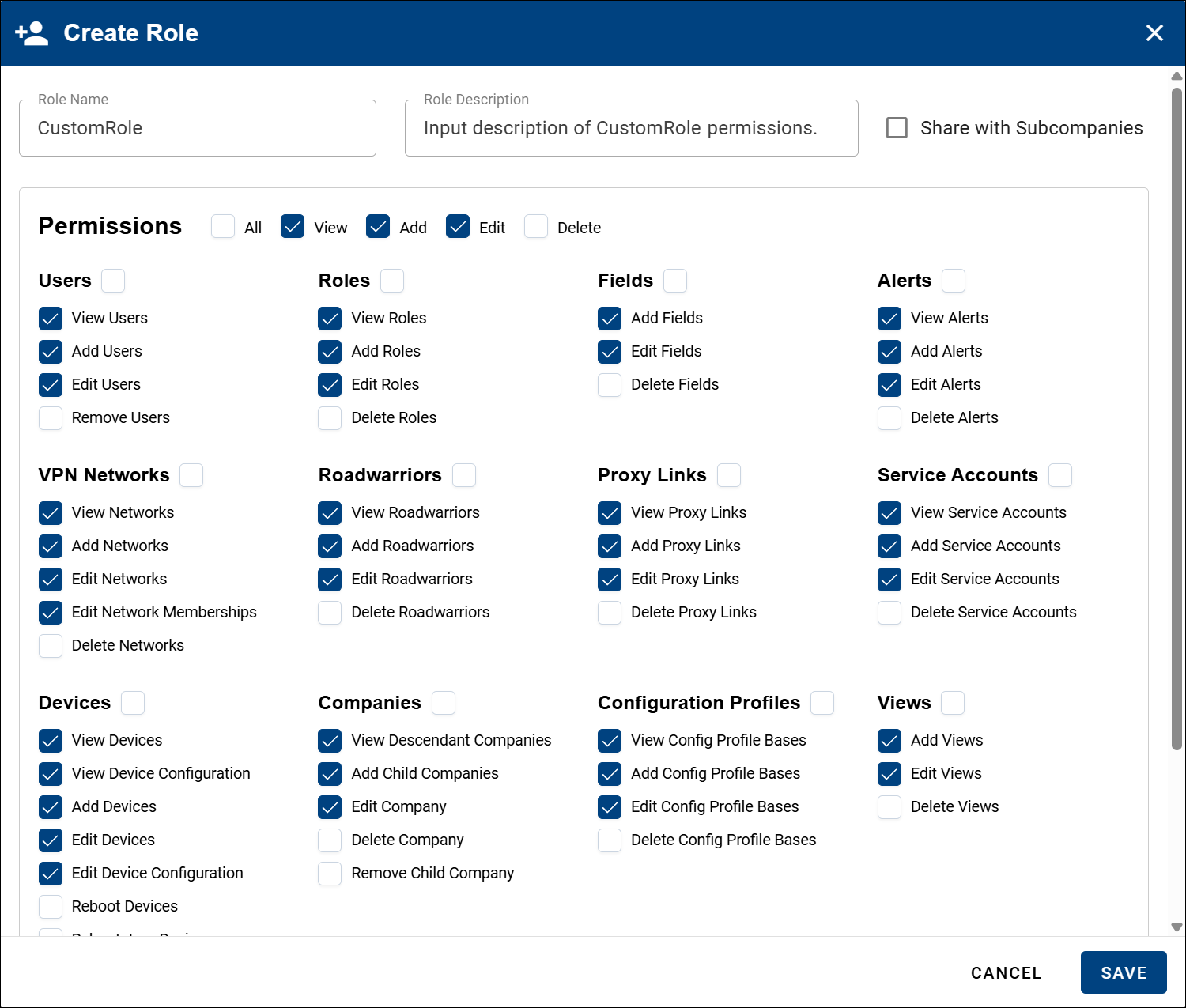
Users can create, edit, and delete custom roles, allowing precise control over which actions a user may perform within a company. The image below shows an example of a custom role configuration.
Assigning Roles to Users
An administrator can assign a role to each user when inviting them to a company, or by editing their permissions later on the Users page of the target company. Users can also select a role themselves from their User Profile page, accessible by clicking the user icon in the upper-right corner and selecting Profile from the dropdown menu.
Best Practices
- Assign users to roles rather than individual permissions whenever possible. This simplifies management, especially when new permissions are introduced.
- Use custom roles for specialized access when the default roles are not sufficient.
- Grant only the permissions required for a user's responsibilities (principle of least privilege).
System Administrator
The System Administrator (Sysadmin) is a platform-level role that operates outside the standard company-scoped permission model. In addition to standard permissions, the Sysadmin can:
- Directly create new user accounts (the only role with this capability).
- Register and delete devices.
- Assign devices to any company.
For issues that cannot be resolved by your Company Administrator, contact WebAccess/DMP support. On On-Premises instances, contact your System Administrator instead.