
Appearance
DMP Client Router App
To propagate managed configuration to a device, the device must be Online (connected to DMP). It does not need to already be Synced — if a synchronization fails, the device shows a NotSync status and synchronizes again the next time its desired configuration is applied.
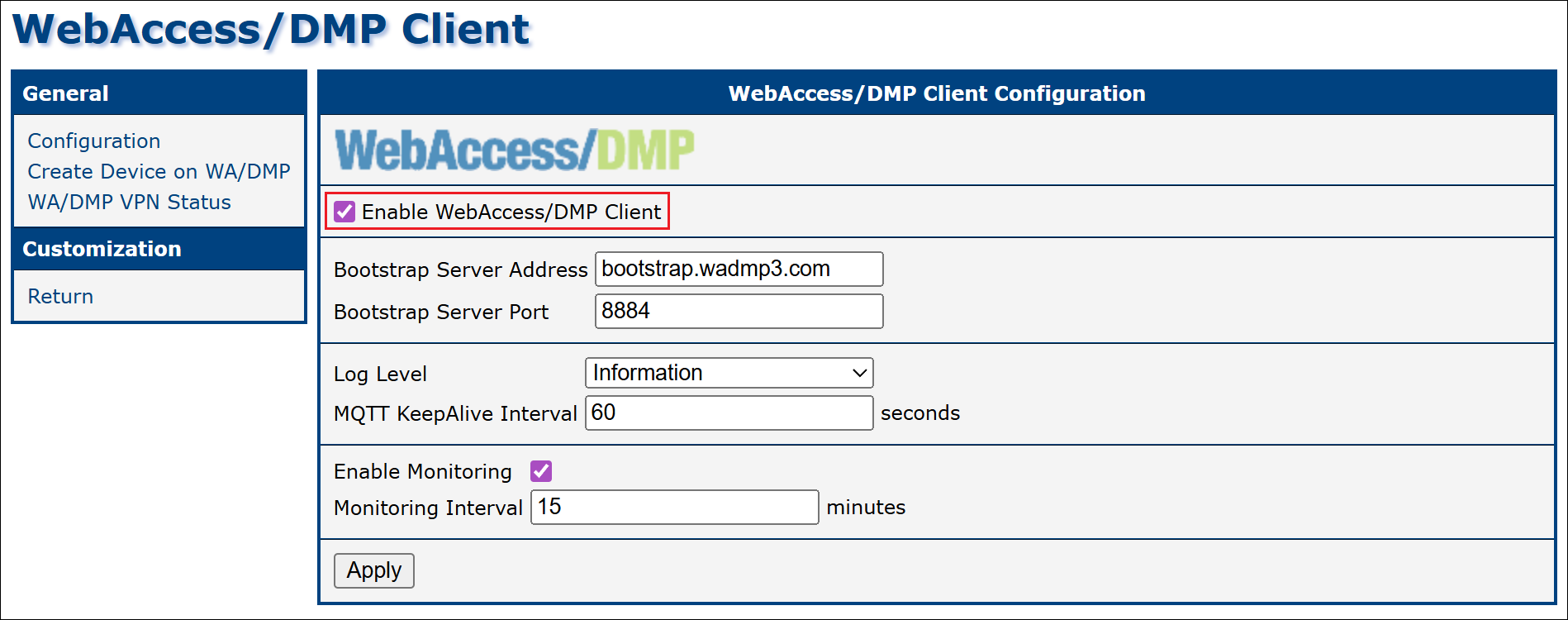
In the DMP Client Router App on the router, the Enable DMP Client Router App option connects the router to WebAccess/DMP and is enabled by default. Disabling it disconnects the router from WebAccess/DMP entirely — it does not merely pause synchronization. To pause synchronization while keeping the router connected, use Synchronization Policies instead.
Note
Enabling monitoring is not required for configuration propagation; monitoring is used only for collecting and reporting metrics. The DMP Client Router App can also enable or disable syslog reporting — see Syslog.
Handling Router-Side Changes
If configuration changes are made locally on the router (via the router's web interface), WebAccess/DMP overrides those changes only if the affected setting is defined as managed (desired) in WebAccess/DMP.
Managed (desired) values can be defined in the following ways:
- By assigning a Configuration Profile.
- By configuring an individual Field from the Configuration category. Fields can be created manually or selected and configured on the Desired Configuration tab of the device page.
Deleting the DMP Client Router App
To remove the DMP Client Router App from a device, the action must first be explicitly allowed at the company level.
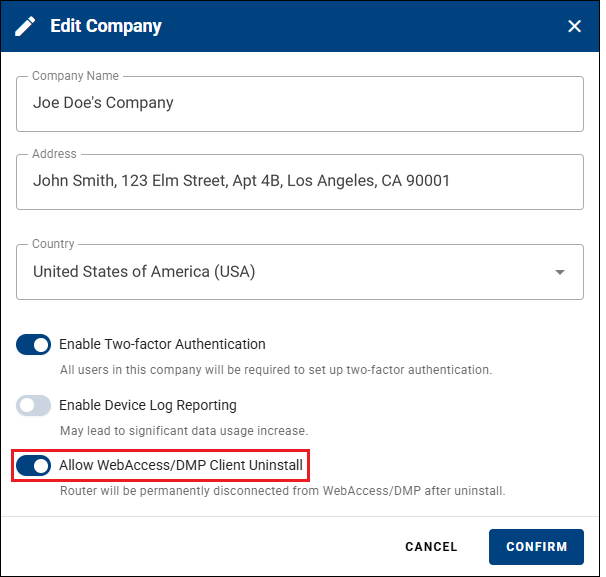
Open the company profile and click Edit.
Enable Allow Client Uninstall and confirm the change.
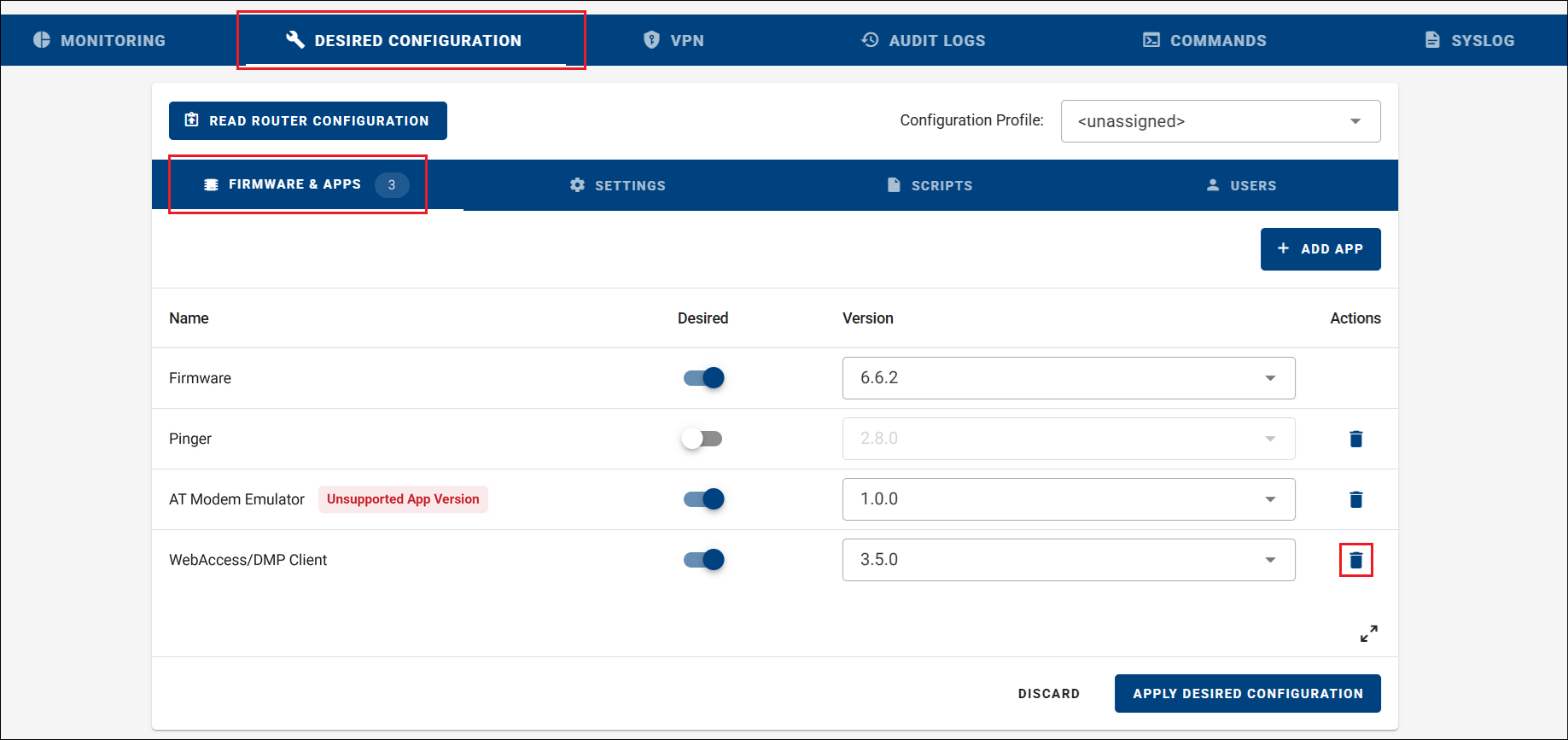
Navigate to the device's Desired Configuration page. A blue trash icon appears next to the DMP Client Router App.
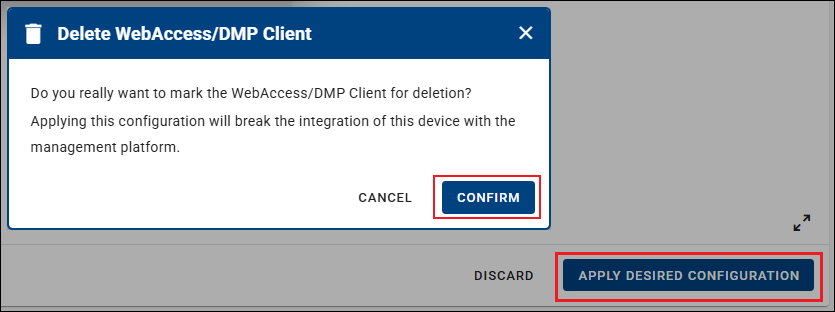
Click Confirm, then select Apply Desired Configuration to remove the DMP Client Router App from the device.
Caution
Once the DMP Client Router App is removed, the device can no longer communicate with WebAccess/DMP. Reinstalling the app then requires direct access to the router — see Install or Upgrade the Client Router App. This is why the action must be explicitly enabled at the company level.
The removal is stored as a managed desired value, so the device's desired configuration still marks the DMP Client Router App as deleted. If you reinstall the app and reconnect it to WebAccess/DMP without changing this, that desired configuration is pushed to the device again and the app is uninstalled a second time. Before reinstalling, remove the deletion from the device's Desired Configuration.