
Appearance
Install or Upgrade the Client Router App
If the DMP Client Router App is not installed on the device, or you are unsure whether it is installed, follow the steps below.
Check for the Installed Client Router App
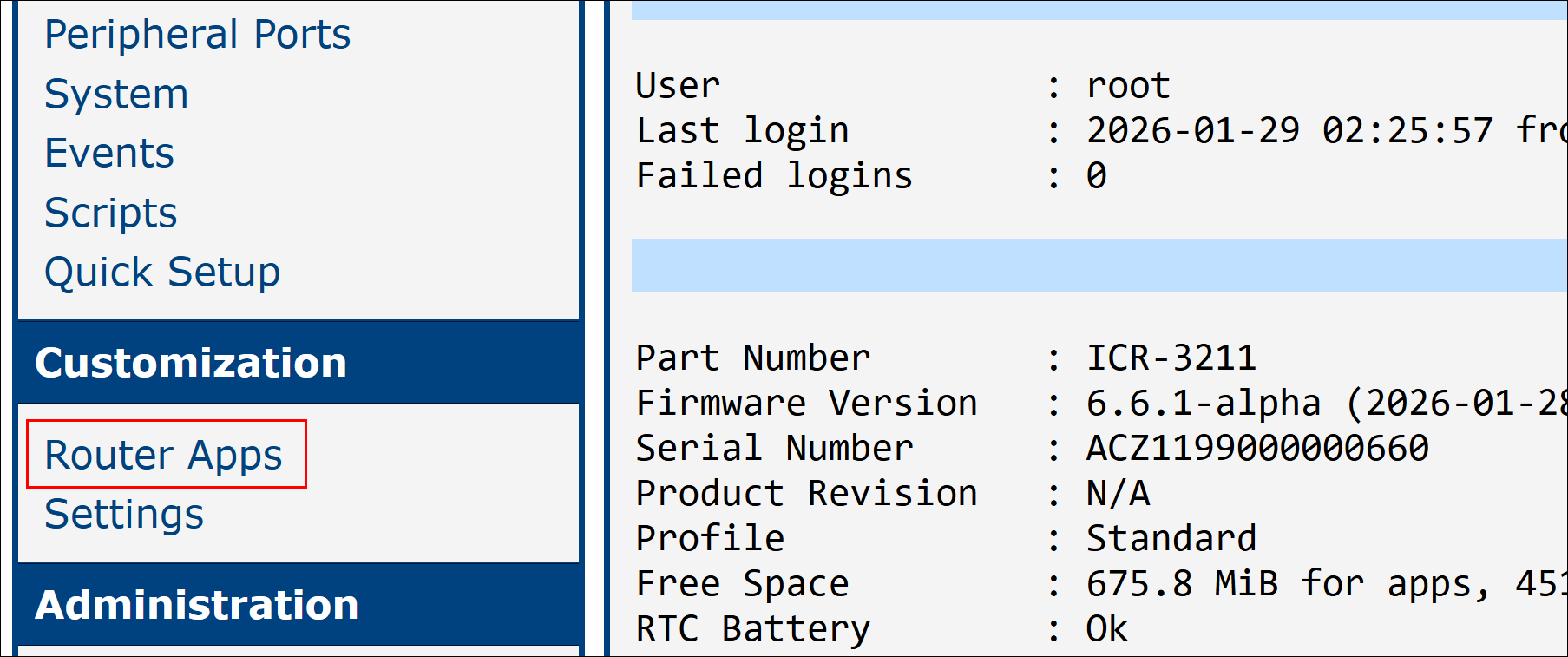
- Sign in to the router's web interface (the default IP address is
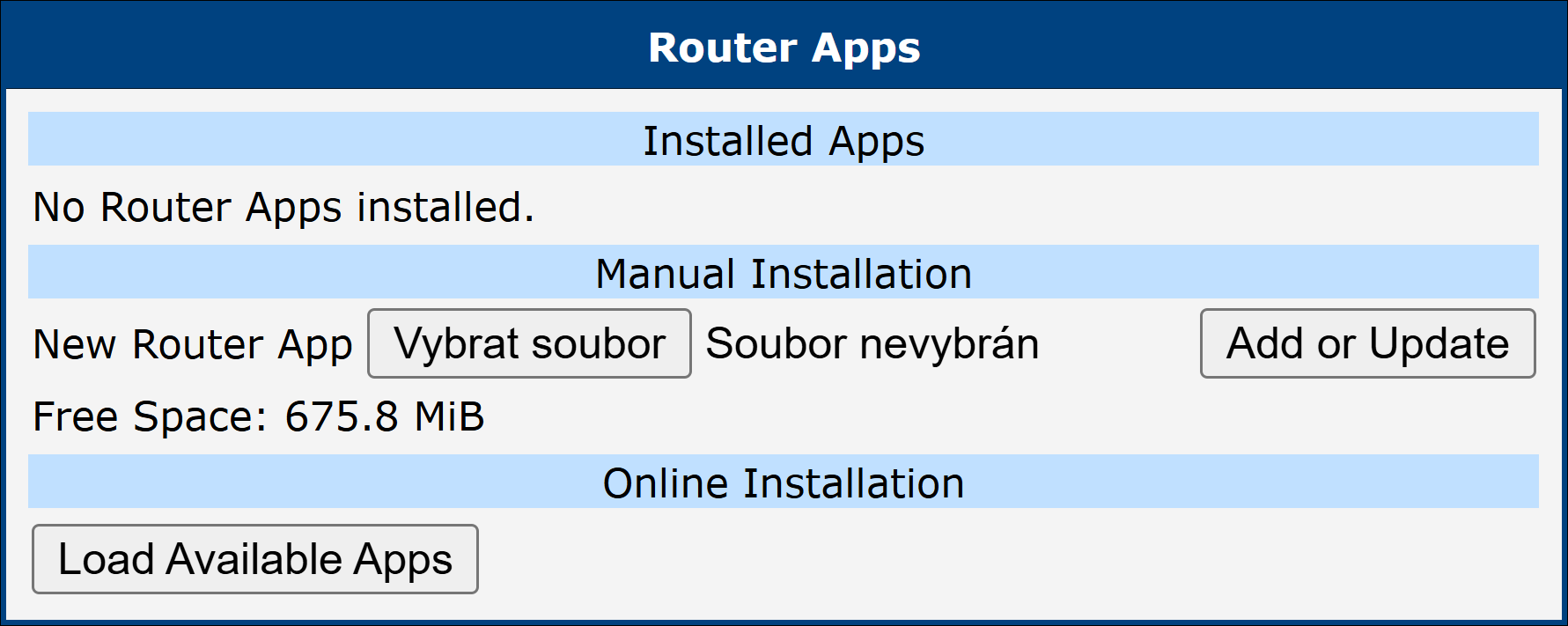
192.168.1.1on the ETH0 interface). - Navigate to Customization → Router Apps.
Note
If the DMP Client Router App is already installed, the device should be able to connect to WebAccess/DMP. Verify the installed version and upgrade to the latest one if necessary (recommended).
The client can be upgraded directly from WebAccess/DMP by selecting the desired version in the Desired Configuration tab on the device page, or by applying a Configuration Profile with the required Client Router App version to multiple devices.
Download the Client Router App
If the DMP Client Router App is not installed, download it first.
From the WebAccess/DMP instance, open the download link:
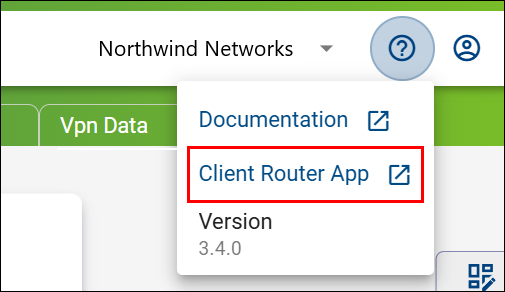
This redirects to the official download page: DMP Client Router App 3.x.x. An Application Note with configuration details is also available there.
Install the Client Router App
- Download the appropriate
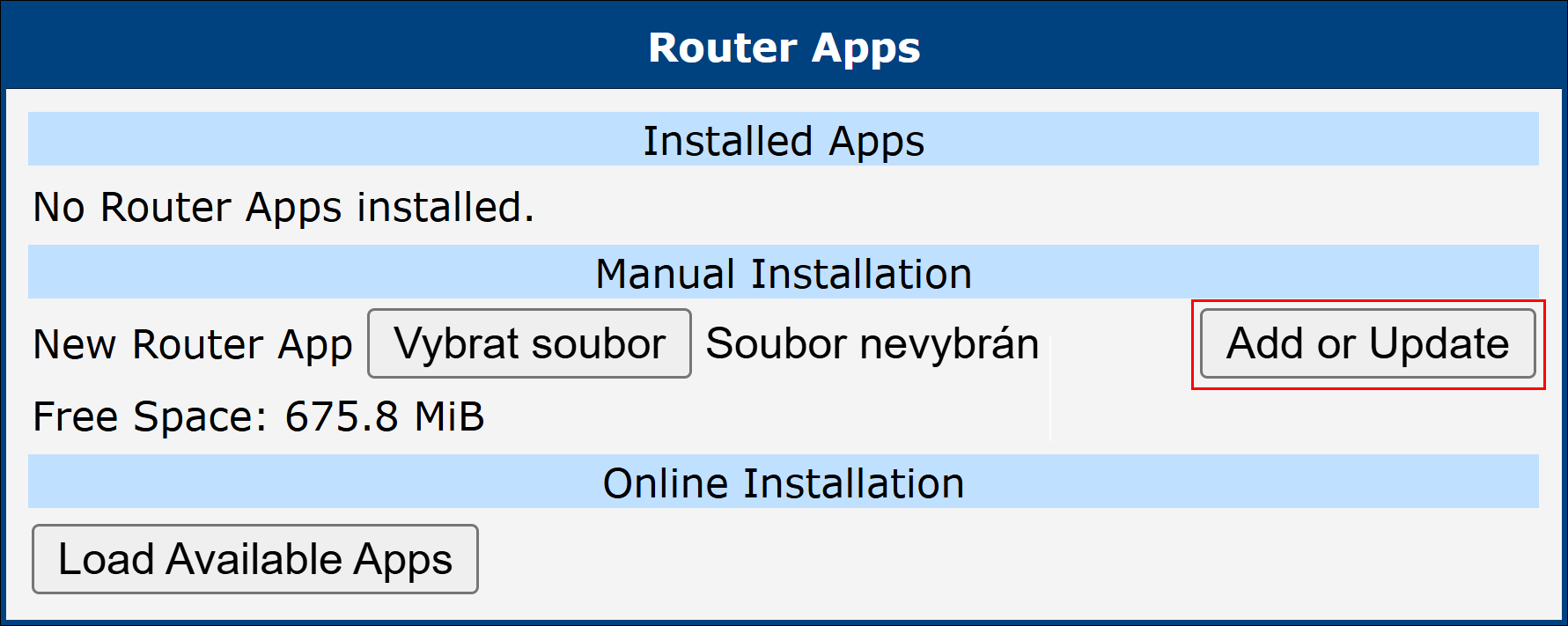
.tgzRouter App package for the device platform. - Install it manually through the device web interface under Customization → Router Apps.
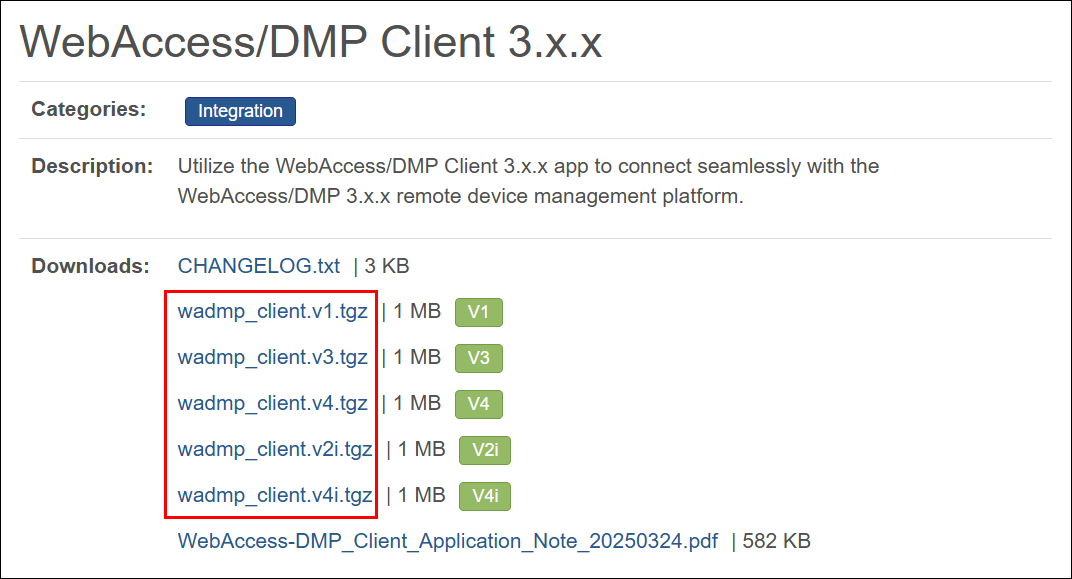
After installation, the device should be able to connect to WebAccess/DMP. To upgrade manually, follow the same procedure and reinstall the package via Customization → Router Apps.
Caution
If the device cannot connect to WebAccess/DMP after installation or upgrade, see the Troubleshooting page or the FAQ.