
Appearance
Device Configuration
Device configuration can be performed in two complementary ways, which can also be combined:
- Individually, using managed settings (Fields from the Configuration category) defined per device.
- In bulk, using Configuration Profiles, which act as reusable templates.
Example
Suppose you manage hundreds of devices that need the same firmware version and the same Router App versions, but a unique interface IP address per device. Create a Configuration Profile with all the shared settings, and a Unique Setting Value Field for the interface IP address. The profile applies the common values to every device, while the field assigns a distinct IP address to each one.
Configuration Profiles
Configuration Profiles are reusable templates that deploy router firmware, Router Apps, settings, scripts, and users to a single device or to many devices at once. They are created and managed in the Config Profiles section (under Profiles & Policies) of the dashboard.
Creating a Configuration Profile
In the Config Profiles section, click + CREATE to open the Create Configuration Profile dialog. Enter a Configuration Profile Name, configure the tabs described below, and click Save.
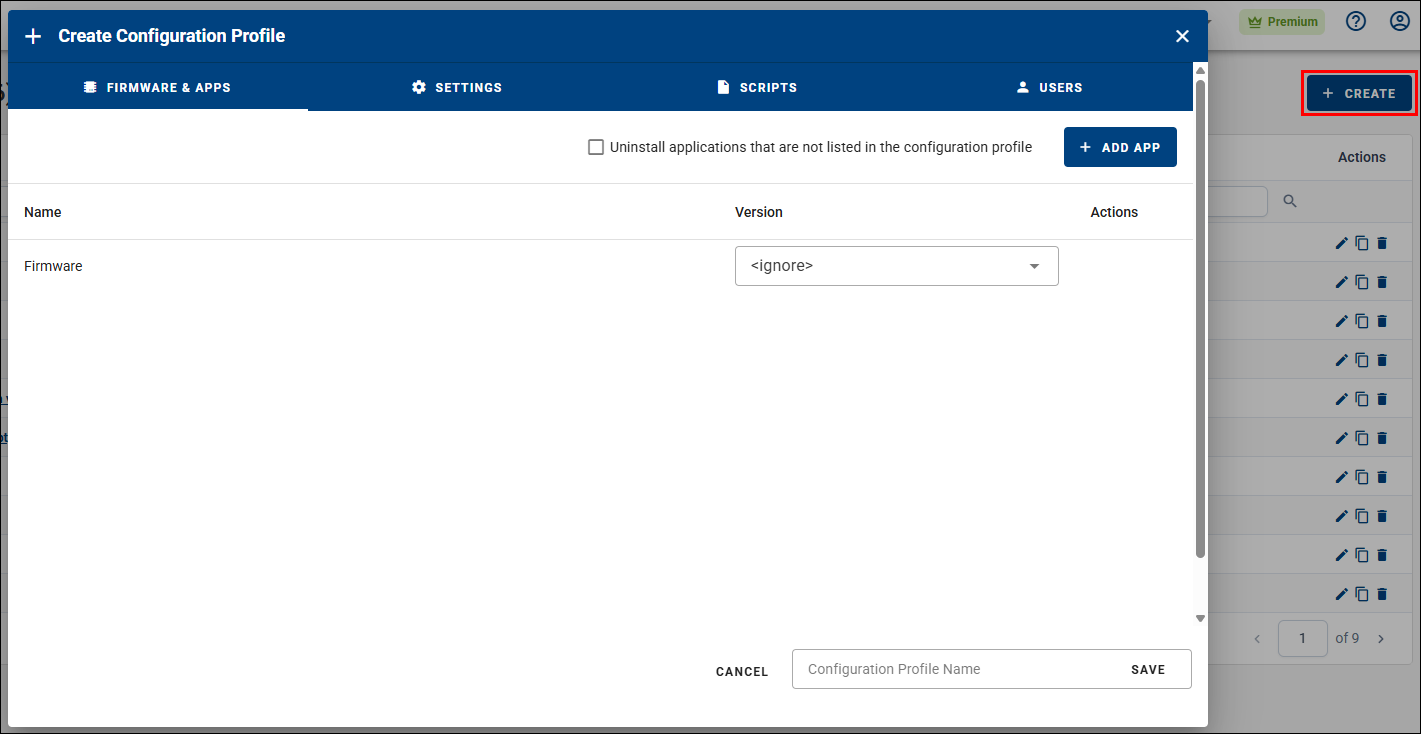
The dialog is organized into four tabs:
- Firmware & Apps — Select the Firmware version to enforce (leave
<ignore>to leave the firmware unmanaged), and click + ADD APP to add a Router App — the form lets you select the Router App and its version. Enable Uninstall applications that are not listed in the configuration profile to remove any Router App that is not part of the profile from the device. - Settings — Click Add setting to add a device setting as a Name / Value pair.
- Scripts — Click Add script to add a script. Choose the script type (Custom, Startup, IPv4 up, IPv4 down, and others), specify the file path (for example,
/etc/rc.d/rc.local), and enter the file data (the script contents, up to 50,000 characters). - Users — Define router users for the profile. Enable Remove users that are not listed in the configuration profile to remove any user not defined here. For each user, provide a Username, a Role (User, Admin, or Operator), and a Password. The Operator role requires router firmware 6.6.1 or later.
Note
Configuration Profiles can no longer be created from the Dashboard. Create them in the Config Profiles section using the dialog above, or from a device snapshot using the Create Configuration Profile icon on the device page — this captures the device's current configuration into a new profile.
Managing Configuration Profiles
In the Config Profiles section, each profile has actions to edit, clone, and delete it. You can also select two profiles and compare them side by side.
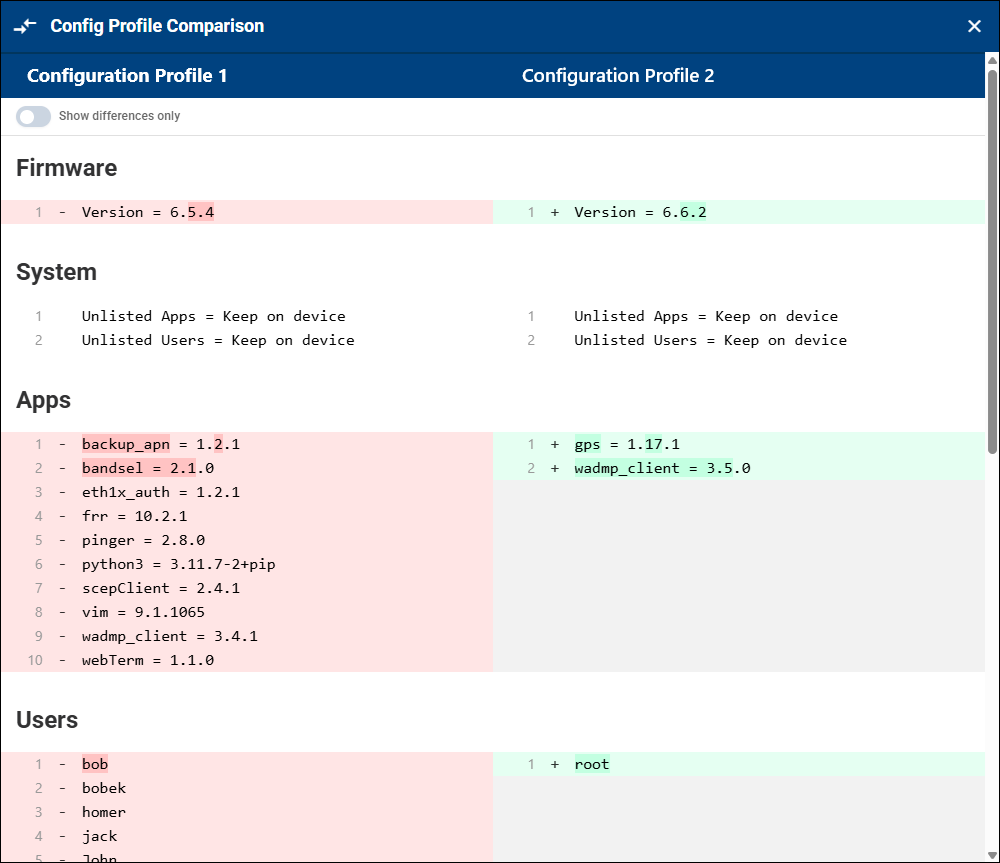
Assigning a Configuration Profile to Devices
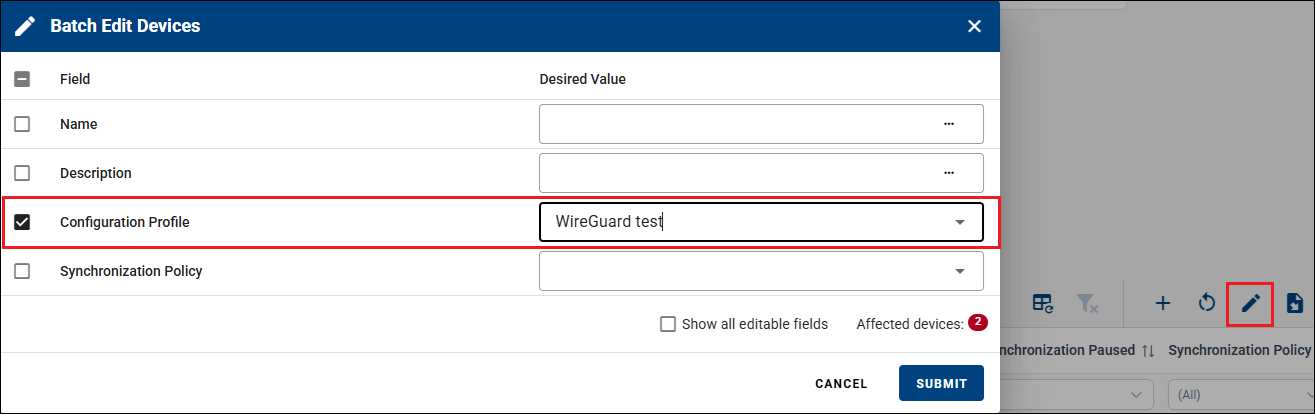
Assign an existing profile to devices from the dashboard device table — to a single device or to many devices at once using the Batch Edit dialog (via the Configuration Profile column). The same assignment can also be done from a device's Desired Configuration section.
Unique Setting Value Fields
For settings that must differ per device (such as IP addresses), use Unique Setting Value Fields. They always take precedence over Configuration Profile values, so a shared profile can be applied to many devices while individual settings remain device-specific.
Example
A Configuration Profile with ETH_IPADDR = 10.10.10.1 sets that value on every device it is applied to. To keep the address unique per device, create a Unique Setting Value Field with the exact setting name (ETH_IPADDR) and assign device-specific values (for example, 10.10.10.2).
To assign unique values in bulk:
- Export the device table to a CSV file.
- Edit the CSV file (for example, in Excel) and assign unique values per device.
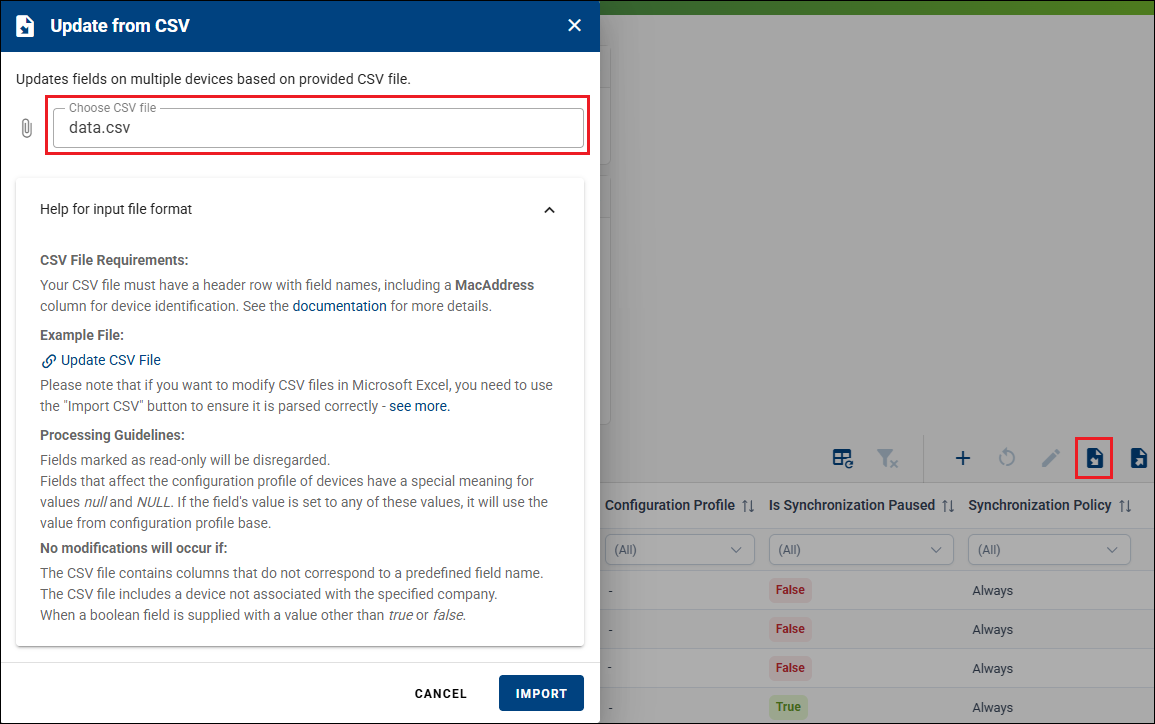
- Import the updated CSV file back into WebAccess/DMP.
For each device, both the Configuration Profile values and the Unique Setting Value Fields are tracked as managed (desired), and can be reviewed or adjusted on the Desired Configuration tab.
Overriding Specific Settings
Specific settings can be overridden in two ways:
- By editing fields directly in the device table.
- By configuring settings on the Desired Configuration tab of the device page.
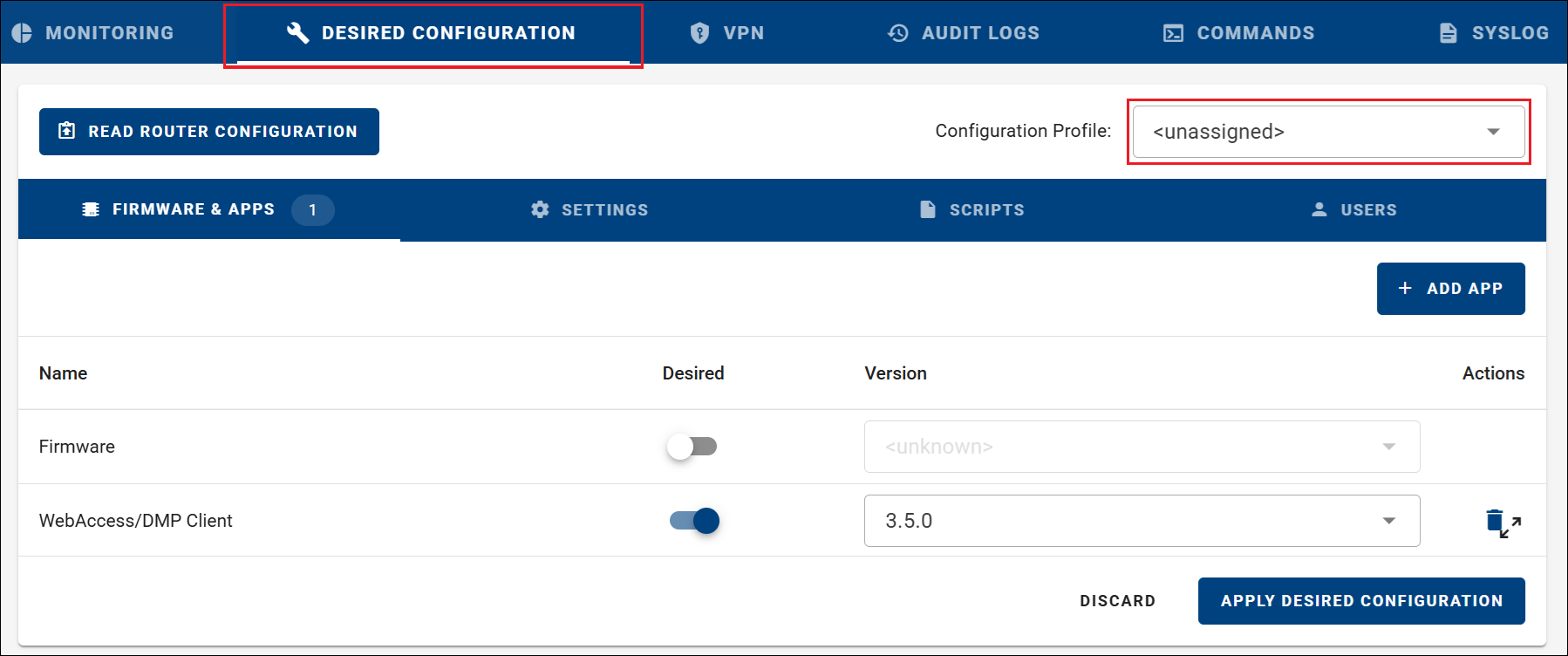
On the Desired Configuration tab you can assign or unassign a Configuration Profile and add or change individual firmware and apps, settings, scripts, and users. If no profile is assigned, click Read Router Configuration to load the device's current settings (the device must be online). Changes are applied to the device after clicking Apply Desired Configuration.
How Desired Configuration Values Are Stored
Whether a value you add on the Desired Configuration tab is tracked as a managed Field — and therefore whether it survives later changes — depends on the Configuration Profile state:
- With a Configuration Profile assigned, adding a setting, script, user, or app stores the value as a Field (a managed value). If a Field for it already exists, the value is written to that Field.
- With the profile Unassigned:
- If a Field already exists for the item, the value is written to that Field.
- If no Field exists, the value is applied to the router but is not stored as a Field — it is a one-time change that WebAccess/DMP does not track.
Values without a Field are not retained
A value applied without a backing Field is a one-time change. If you later assign a Configuration Profile that does not include that value, the value is overwritten and lost — WebAccess/DMP no longer has it and cannot restore it. To keep a value managed so it survives a profile assignment, make sure it is backed by a Field: either add it while a Configuration Profile is assigned (which creates the Field automatically), or create the Field first on the Fields page (for example, a Unique Setting Value field whose setting name matches the setting, such as IPSEC_DESCRIPTION).
This behavior applies to everything on the Desired Configuration tab — firmware and apps, settings, scripts, and users. A Field's value can also be edited from the dashboard device table or the Monitoring tab.
Performing Batch Edits
Batch Edit from the Dashboard
- Select one or more devices (selecting all ignores pagination).
- Click Edit Multiple Devices.
- Modify values in the Batch Edit Devices table.
- Click Submit to apply changes to the selected devices.
Batch Edit via CSV Import
Editable fields, including configuration fields, can also be updated via CSV import. The recommended workflow is:
- Configure the dashboard device table to include all required fields.
- Export the table to CSV.
- Edit values using a spreadsheet tool.
- Import the CSV back into the same dashboard view.
Need help with CSV imports?
For detailed instructions, see the CSV Import Guide.