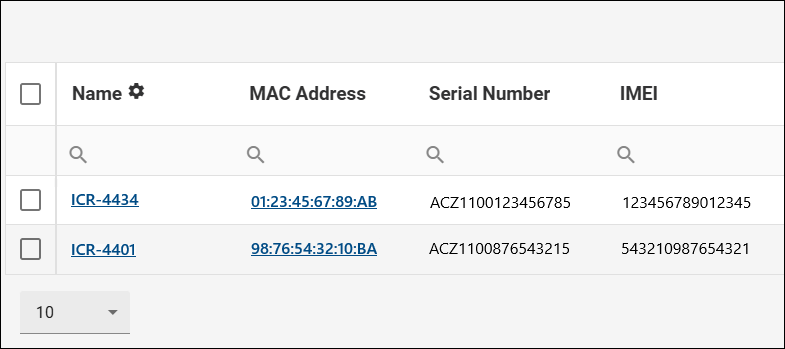
Appearance
Add a Device
NOTES
- You must have the Add Devices permission to add a device to a company. See User Roles.
- A device can connect to WebAccess/DMP only if the DMP Client Router App is installed. It is typically pre-installed during manufacturing, so in most cases adding the device is sufficient for it to connect. If needed, see Install or Upgrade the Client Router App.
- Support for the WebAccess/DMP platform is limited for the S1 Router models.
Rules
- Both newly manufactured and previously removed devices can be added.
- A device can belong to only one company at a time.
- A company can remove a device it previously added.
- A device must be added to a company before it can be managed or monitored.
- A Free company can add up to five unique devices.
Device limit for Free companies
Once five devices have been successfully added, no additional devices can be added, even if some are later removed. The limit is based on the total number of successful Add Device operations, not on the current number of devices.
Obtaining Device Information
The information required to add a device can be obtained in one of two ways.
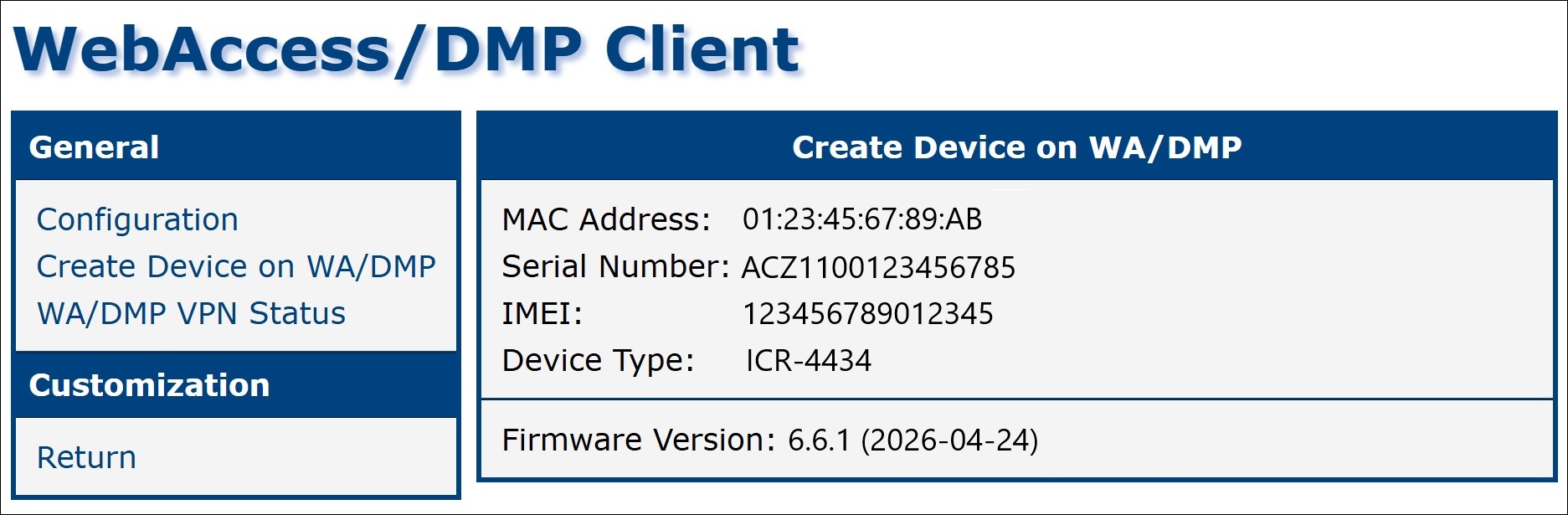
From the DMP Client Router App on the router:
- Sign in to the router's web interface.
- Navigate to Router Apps (in the Customization section).
- Open the DMP Client Router App.
- Click Create Device on WA/DMP.
- Copy the displayed device information.
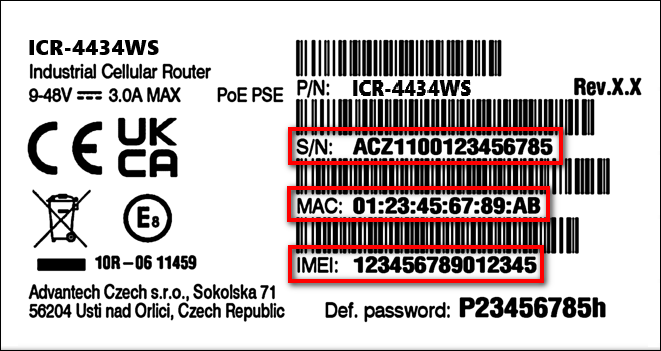
From the printed device label:
Adding a Device to a Company
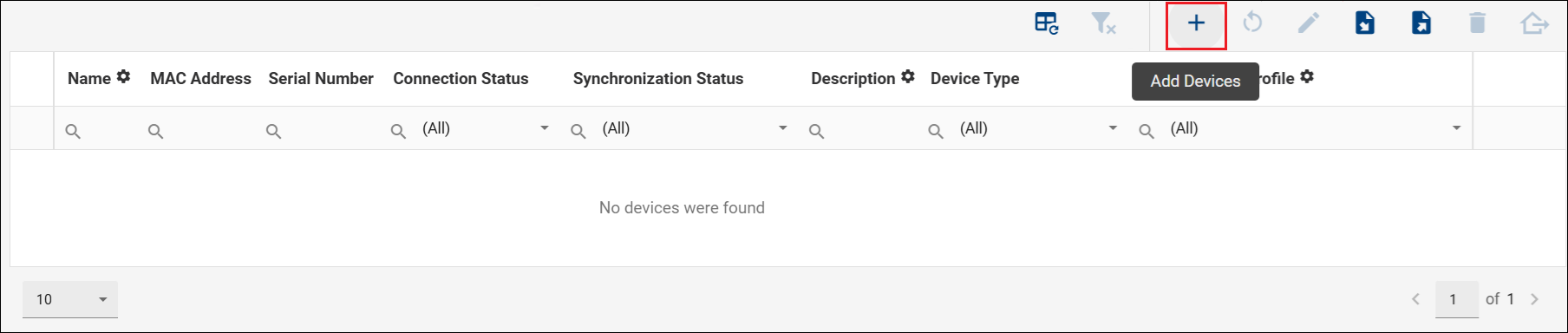
Navigate to the Dashboard from the side menu.
Click the Add Devices button above the device table.
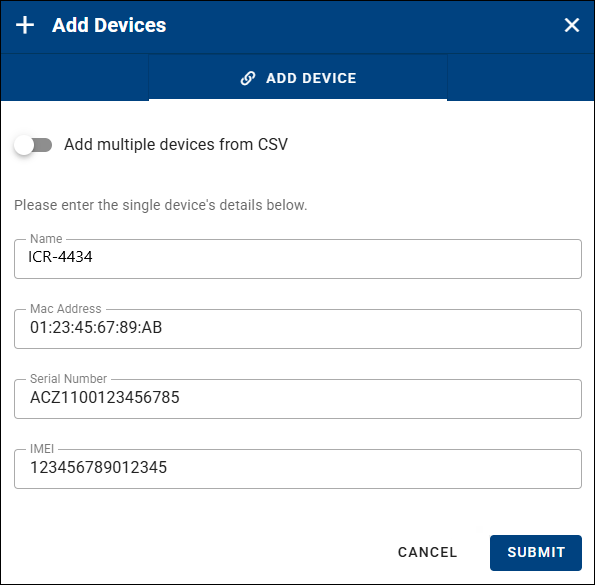
Fill in the Add Device form:
- Name (optional) — A human-readable name for easier identification.
- MAC Address (required) — The MAC address of the ETH0 interface, exactly as shown on the device label (format:
00:0A:14:AA:BB:CC). - Serial Number (required) — The serial number exactly as printed on the device label.
- IMEI (required for devices that provide one) — The IMEI number of the device.
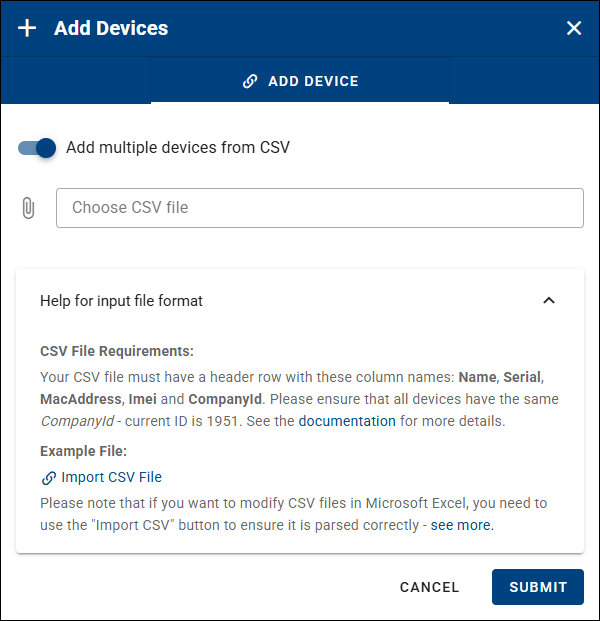
To add several devices at once, enable Add multiple devices from CSV:
- Prepare a CSV file using the format shown in the expandable help.
- For large shipments, you can request a prepared device list from support.
- Download a sample file: CSV Example File.
Click Submit to complete the process.
After a successful addition, the devices appear on the Dashboard for the company.