
Appearance
Fields
Fields represent data tracked by the system for a company. They are categorized by purpose and can be used for both monitoring and configuration, and they also drive data presentation on dashboards, bulk or individual configuration, alerts, and other features.
How Fields Work
Fields are a core building block for customizing views in both the Company Dashboard and Device Dashboard. They allow users to tailor displayed information to their operational needs.
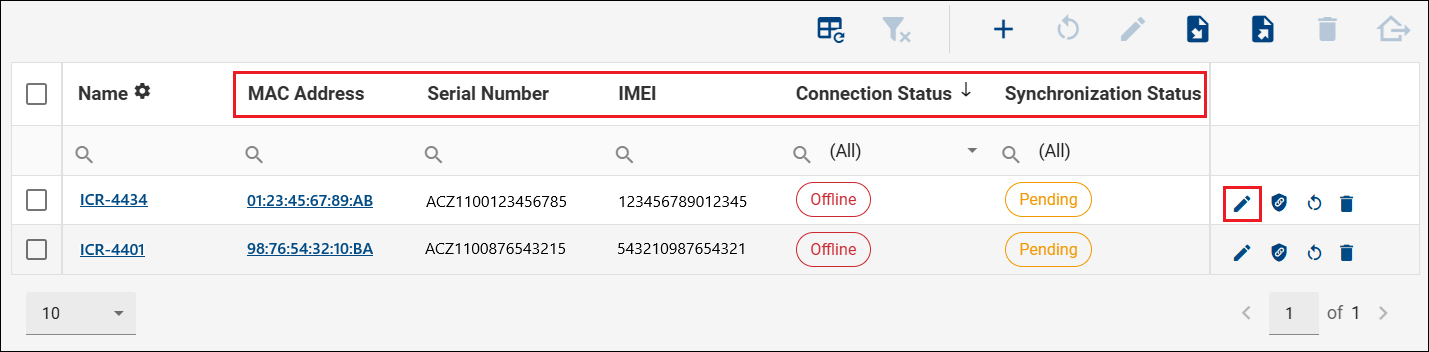
- When a field is added to a dashboard, it appears as a widget or as a column in a table, providing real-time or aggregated data.
- Editable fields can be modified directly from the dashboard using the edit (pencil) icon.
In the example below, fields are displayed as columns in the Company Dashboard table, and editable values can be changed inline:
Field Categories
On the Fields page, fields can be filtered by their reporting behavior (Never, Always, or On Change), as well as by name, reset period, or description.
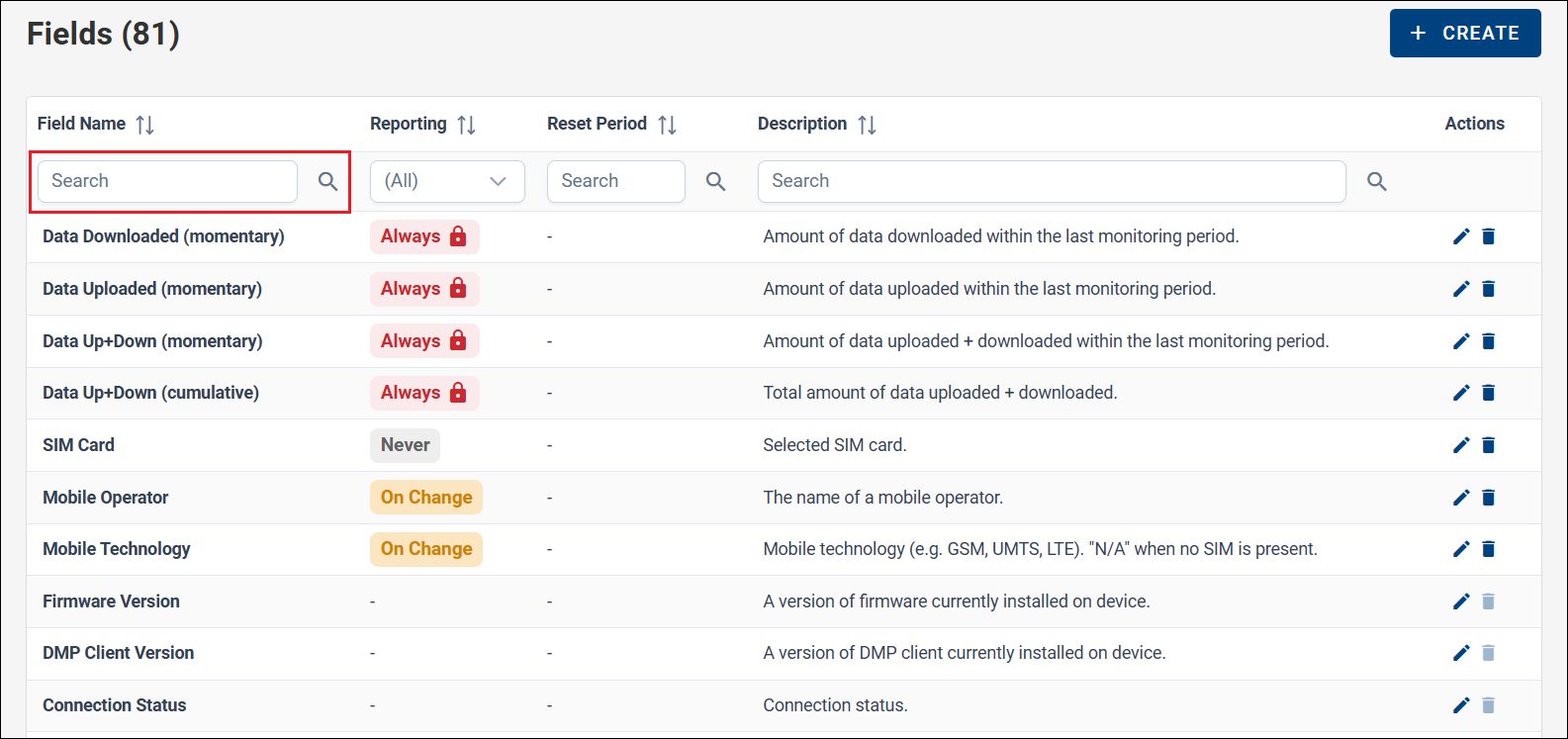
Fields are grouped into categories to simplify management and usage. A field's category is defined by the system; each field belongs to a single category.
Static Fields
Static fields contain information that typically does not change over time. Some static fields (such as Name or Description) can be edited, but their values remain constant until changed manually.
Examples include:
- Device ID
- MAC Address
- Name
- Description
- Serial Number
- IMEI
- VPN IP Address (if VPN is initialized)
- VPN Proxy Link (if VPN is initialized)
- VPN Subnet (if VPN is initialized)
Monitoring Fields
Monitoring fields provide real-time or periodically updated information about a device's status and performance.
Examples include:
- Connection Status
- Data Downloaded (recent)
- Data Uploaded (recent)
- DMP Client Version
- Firmware Version
- Mobile Operator
- CPU Usage (uses the same units as the Linux
topcommand; for example,391 %means full utilization of approximately four CPU cores) - WAN Interface Name
Cumulative Fields
Cumulative fields aggregate monitoring data over time to provide long-term insight. Some cumulative fields have an associated Reset Period — a property of the field itself, not something set when creating a field.
Examples include:
- Data Downloaded (cumulative)
- Data Uploaded (cumulative)
- Data Up+Down (cumulative)
- Reconnects Count
- VPN Connected (if VPN is initialized)
Configuration Fields
Configuration fields define device settings and desired configuration values.
Examples include:
- Configuration Profile
- Unique Script
- User Password
- Other device-specific configuration parameters
Default Fields
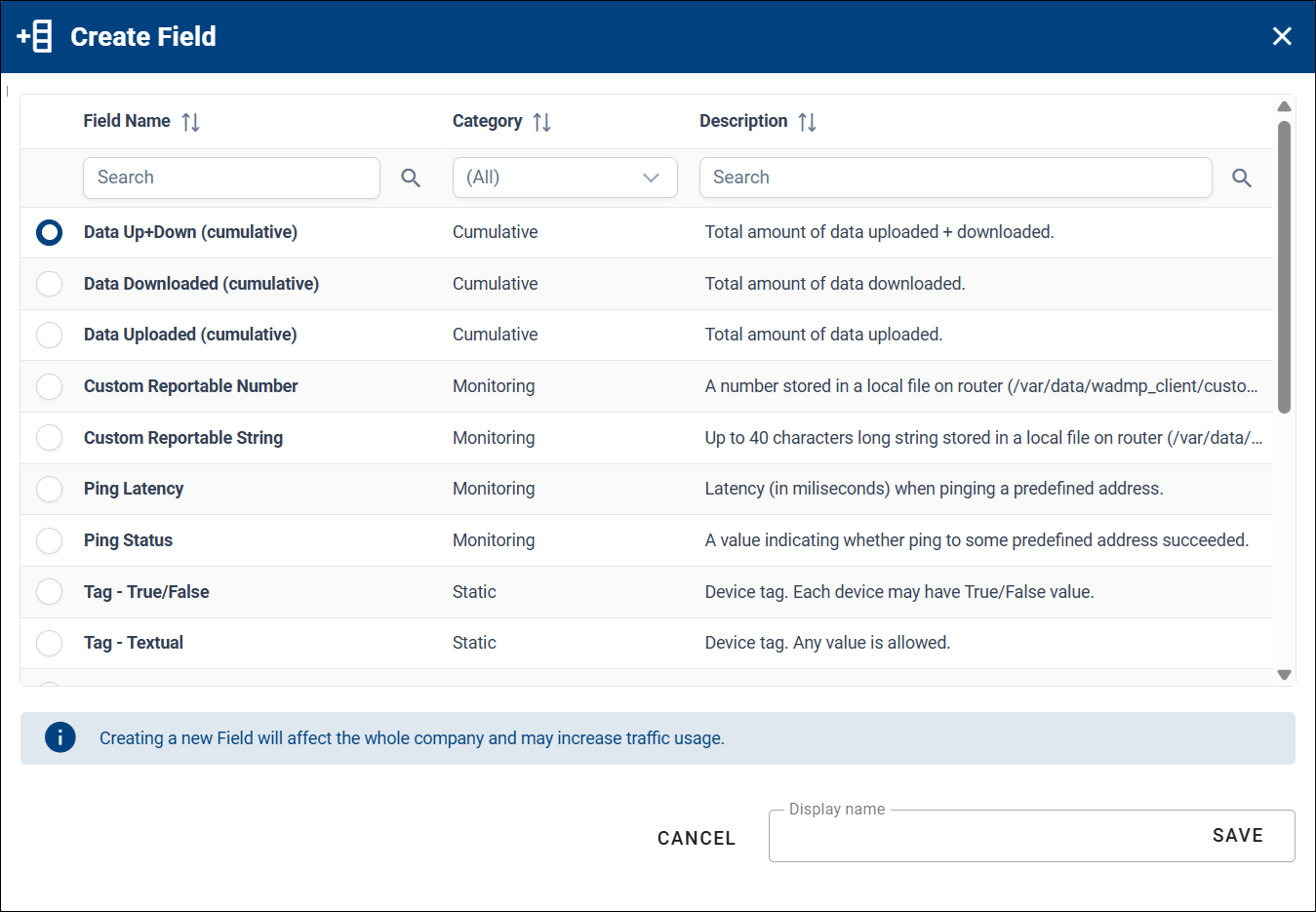
A set of default fields is available in the Fields section of the side menu. Additional fields can be explored via the Create Field dialog by clicking + Create on the Fields page.
| Field | Description |
|---|---|
| Claimed Date | Date when the device was claimed. |
| Configuration Profile | Assigned configuration profile. |
| Connection Status | Current device connection status. |
| Data Downloaded (recent) | Amount of data downloaded during the last monitoring period. |
| Data Up+Down (cumulative) | Total amount of uploaded and downloaded data. |
| Data Up+Down (recent) | Uploaded and downloaded data during the last monitoring period. |
| Data Uploaded (recent) | Amount of data uploaded during the last monitoring period. |
| Date Created | Date when the device was created on the server (typically the manufacture date). |
| Description | Device description. |
| Device ID | Unique device identifier. |
| Device Type | Device model/type. |
| DMP Client Version | Version of the DMP client installed on the device. |
| Firmware Version | Firmware version installed on the device. |
| IMEI | Device IMEI (if applicable). |
| Is Synchronization Paused | Whether the device's synchronization is currently paused. |
| MAC Address | MAC address of the primary LAN interface. |
| Mobile Operator | Name of the mobile operator. |
| Mobile Technology | Mobile technology (e.g., GSM, UMTS, LTE); N/A if no SIM is present. |
| Module Firmware Version | Firmware version of the cellular module. |
| Module Revision | Revision of the module. |
| Name | Device name. |
| Online/Offline Since | Timestamp of the last connection or disconnection event. |
| Order Code | Device order code (internal or purchase reference). |
| Reconnects Count | Number of times the device transitioned from offline to online. |
| Serial Number | Device serial number. |
| SIM Card | Active SIM card. |
| Sync Policy | The synchronization policy assigned to the device. |
| Synchronization Status | Current device synchronization status. |
| VPN Connected | Indicates whether the device is connected to the VPN hub (if initialized). |
| VPN IP Address | VPN IP address (if VPN is initialized). |
| VPN Proxy Link | Link to access the router UI via VPN (if VPN is initialized). |
| VPN Subnet | VPN subnet (if VPN is initialized). |
| WAN Interface Name | Name of the WAN interface. |
Note
The Sync Policy, Synchronization Status, and Is Synchronization Paused fields are used to assign and track synchronization. See Synchronization Policies for details.
Creating and Removing Fields
Creating Fields
Click + CREATE on the Fields page, or enter Edit View mode on a dashboard.
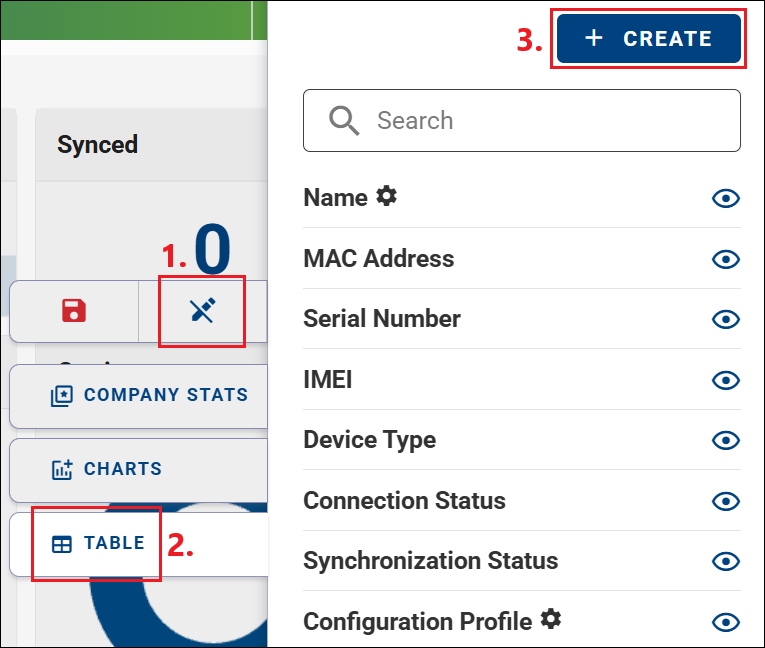
Click + CREATE to open the field selection panel.
Select the desired field from the available categories.
Specify a display name.
Click Save to add the field.
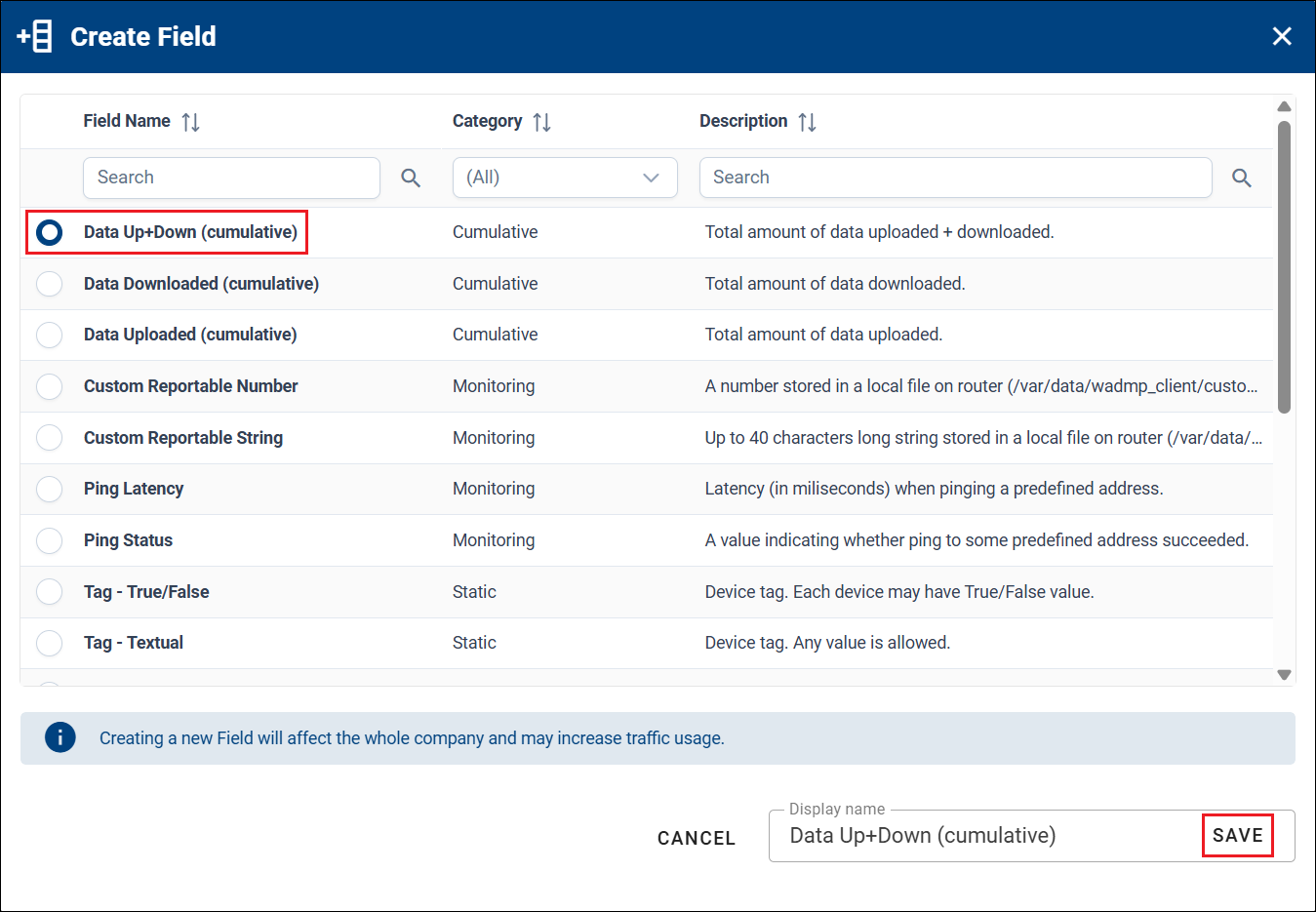
A field's description can be added later by editing the field. It is not set when the field is first created.
Removing Fields
In the side menu, open Fields and locate the field you want to remove.
Click the Delete (trash) icon next to the field.
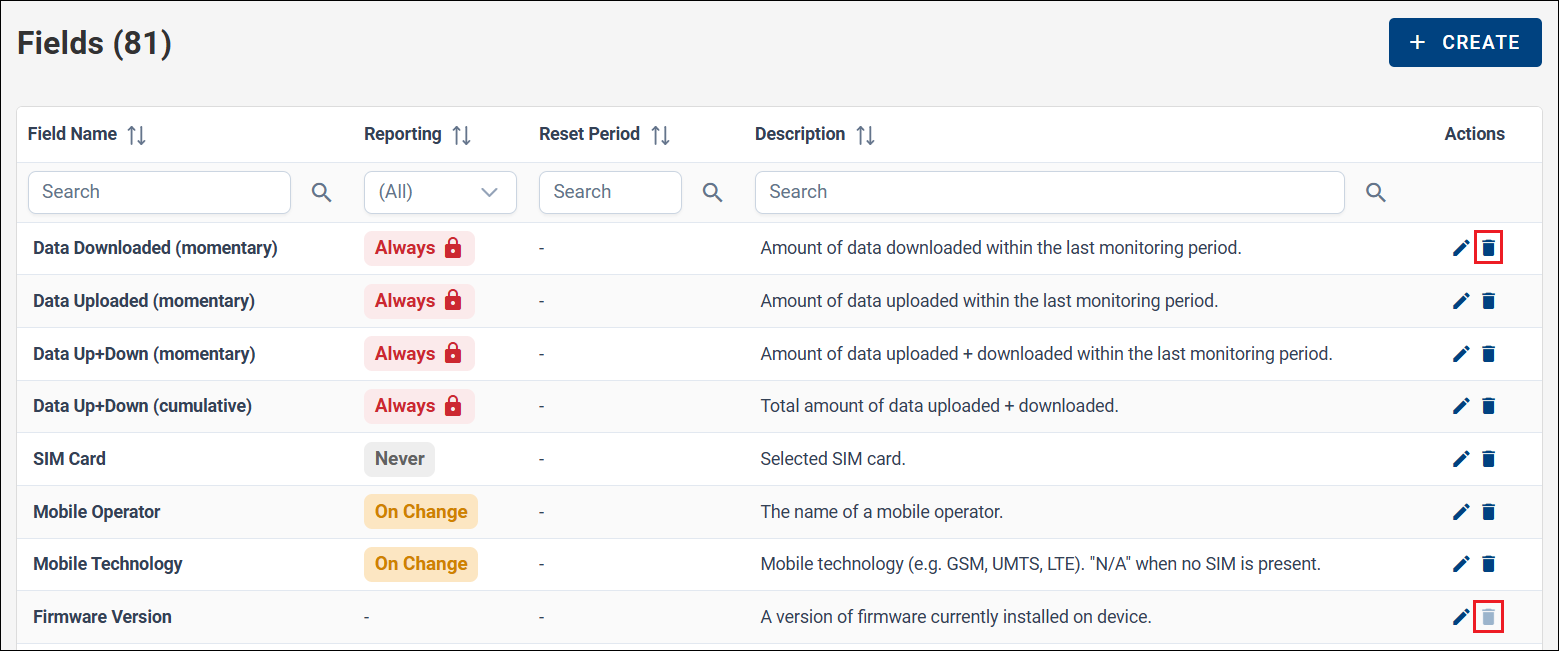
Confirm the removal.
Note
Some fields, such as certain Static fields, cannot be removed.